Fine-Grained Access Control with AWS Lake Formation
AWS Data Engineer Roadmap
Lake Formation fine-grained access control — table grants, column filters, row filters, and tag-based access — done entirely from the console.
Chapter 4 of 6 — AWS Data Engineer Roadmap
Console-only demo of Lake Formation fine-grained access control. Producer is quicklabs-student8 (you), consumer is quicklabs-student7 (any other student user — swap the digit if needed).
Assumes the AWS Data Lake chapter is done: quicklabs-student8-raw and quicklabs-student8-curated exist, quicklabs_student8_lake.curated_oil is queryable in Athena.
| Variable | Value used in this doc |
|---|---|
| Producer | quicklabs-student8 |
| Consumer | quicklabs-student7 |
| Database | quicklabs_student8_lake |
| Table | curated_oil |
| Source S3 | s3://quicklabs-student8-curated/ |
| Account ID | 123456789012 |
| Region | us-west-2 |
Prerequisites (verify, 1 min)
- Lake Formation console → region in top-right is us-west-2.
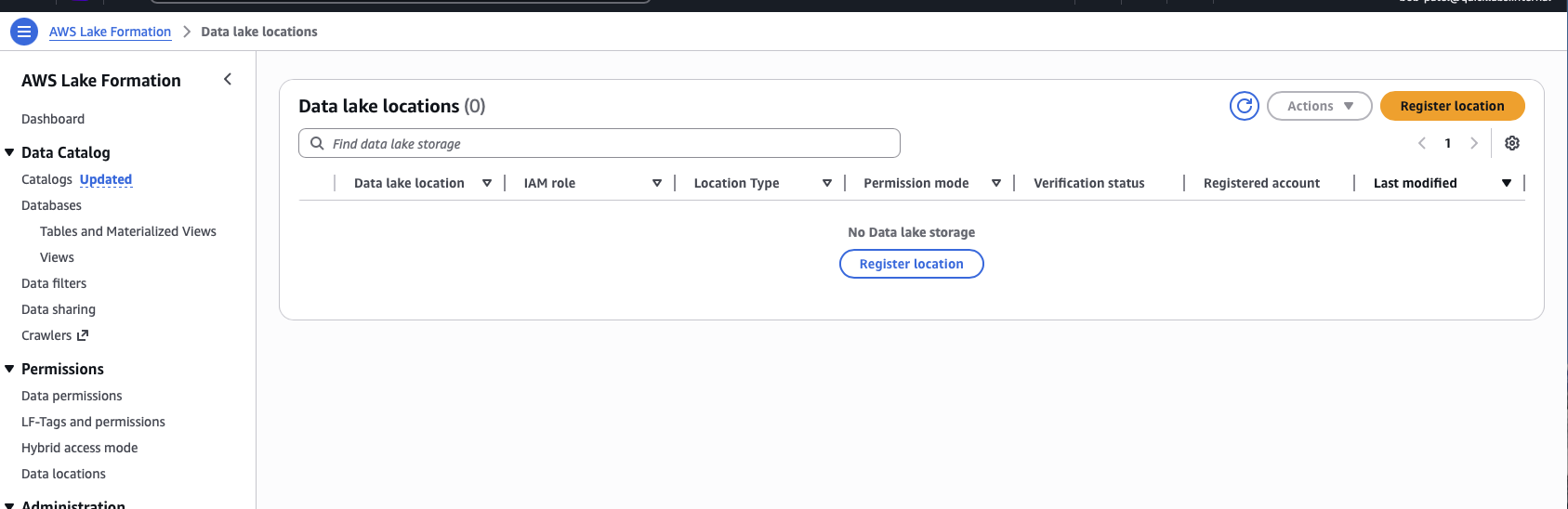
- Left nav → Administration → Administrative roles and tasks → confirm
quicklabs-student8is in Data lake administrators. (Should already be — terraform-iam adds all 15 students.) - Athena console as student8 → confirm
SELECT * FROM quicklabs_student8_lake.curated_oil LIMIT 5works.
One-time setup (3 console actions, 3 min)
Setup 1 — Register the curated S3 location with LF
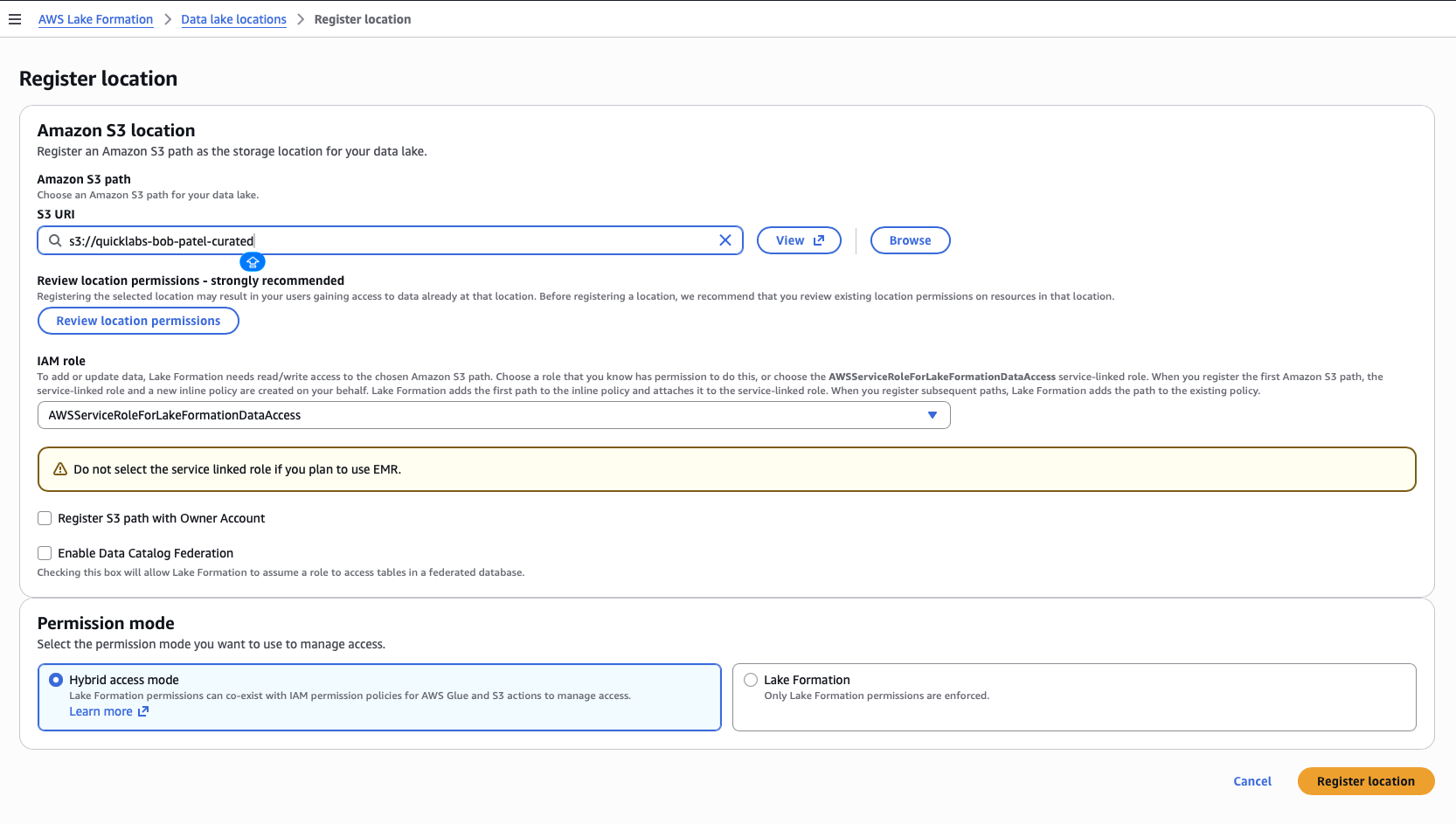
Lake Formation console → Administration → Data lake locations → Register location.
| Field | Value |
|---|---|
| Amazon S3 path | s3://quicklabs-student8-curated/ |
| IAM role | Use service-linked role (keep checked) |
| Permission mode | Lake Formation mode |
Register location.
Troubleshooting: if you get
iam:PutRolePolicy ... not authorizedhere, the student LF policy didn't yet include the permission to update the Lake Formation service-linked role (LF needs to add an inline grant to the SLR for the new bucket). Afterterraform apply, sign out + back in and retry.
Setup 2 — Strip the legacy IAMAllowedPrincipals grant
Without this, LF doesn't enforce — any IAM-allowed user bypasses LF rules.
Lake Formation console → Data permissions → filter Database = quicklabs_student8_lake.
For each row where Principal = IAMAllowedPrincipals: select → Revoke.
(If none appear, you're already clean.)
Setup 3 — Note the consumer ARN
arn:aws:iam::123456789012:user/quicklabs-student7
Demo 1 — Baseline: consumer cannot query (2 min)
Open incognito / private window, log in as quicklabs-student7.
Critical: top-right region selector → US West (Oregon) us-west-2. The student IAM policy explicitly denies non-IAM/STS calls outside us-west-2; if you're in any other region you'll get explicit deny in an identity-based policy errors before LF even has a chance to evaluate. This applies to every student window.
Athena console (student7's workgroup quicklabs-student7-wg):
SELECT * FROM quicklabs_student8_lake.curated_oil LIMIT 5;Expect Insufficient Lake Formation permission(s) or Table not found. Either is fine — both prove "no grant = no access."
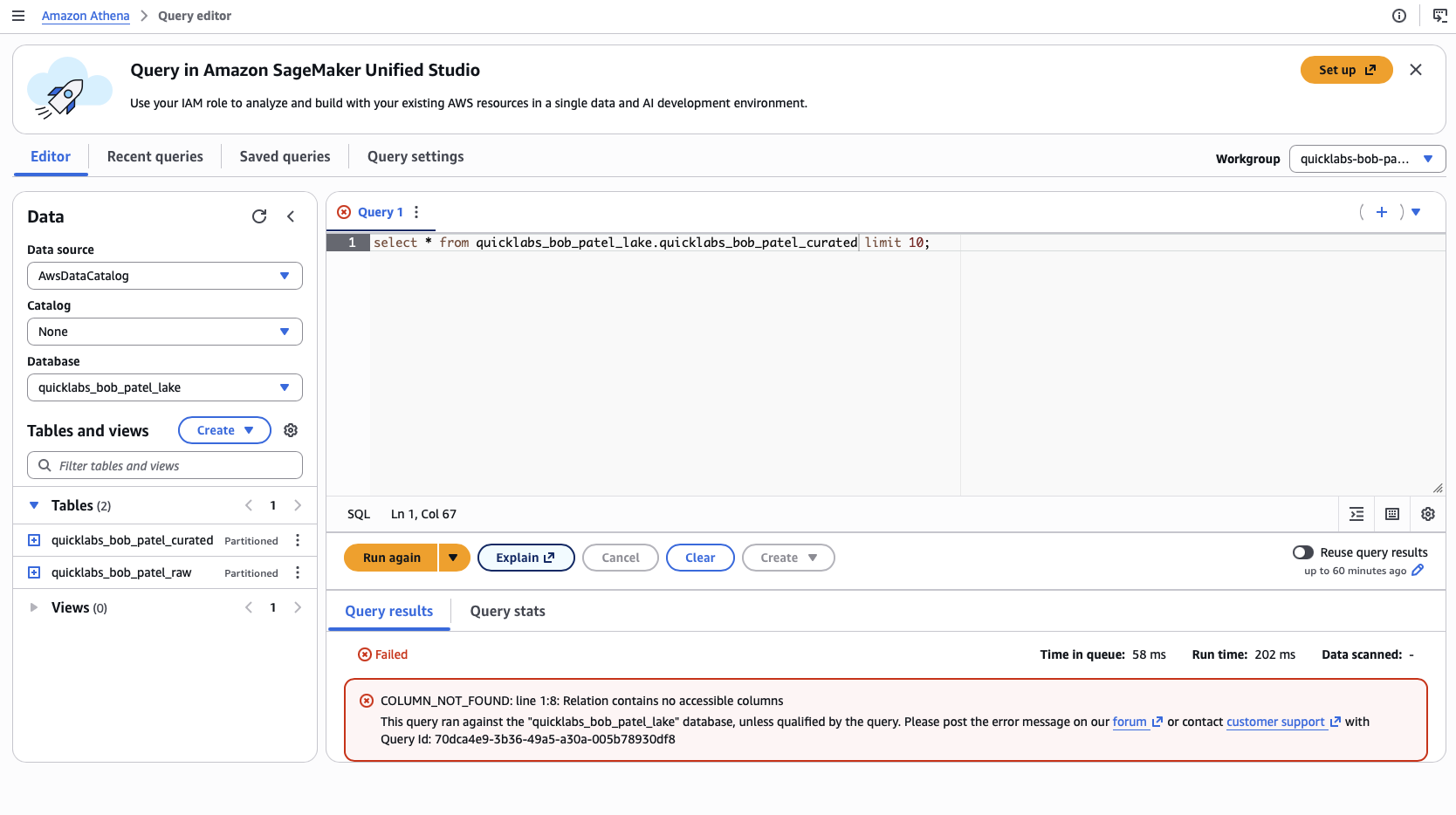
Leave this window open. Refresh / rerun after each grant change.
Demo 2 — Table-level SELECT grant (3 min)
Back in student8's window.
Lake Formation console → Data permissions → Grant.
| Section | Field | Value |
|---|---|---|
| Principals | IAM users and roles | quicklabs-student7 |
| LF-Tags or catalog resources | (radio) | Named Data Catalog resources |
| Databases | quicklabs_student8_lake | |
| Tables | curated_oil | |
| Table permissions | (checkboxes) | Select, Describe |
Grant.
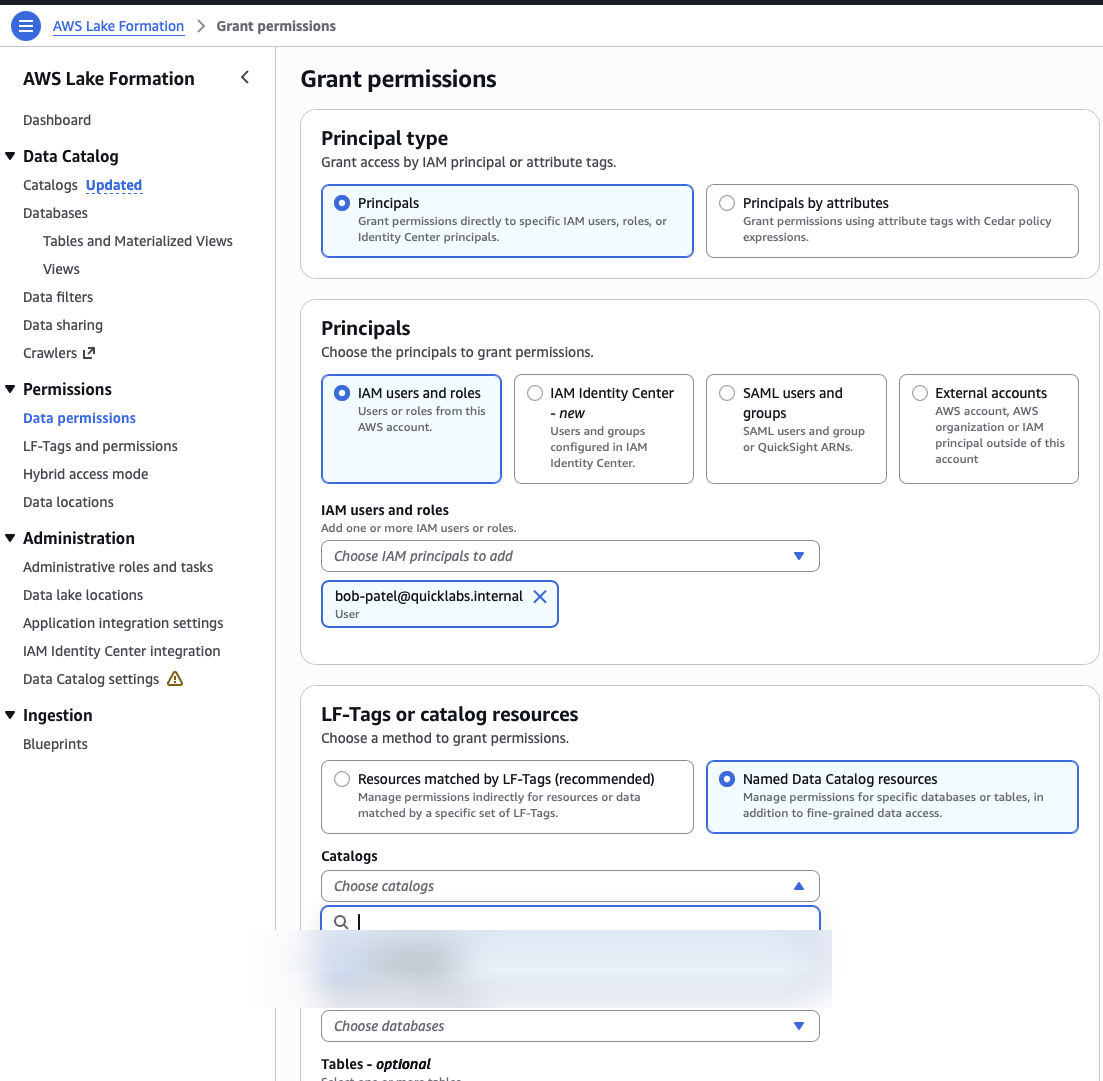
Also grant Describe on the database (so student7 can see the table exists). Same wizard, only fill in Databases (no Tables), check Describe under Database permissions. Grant.
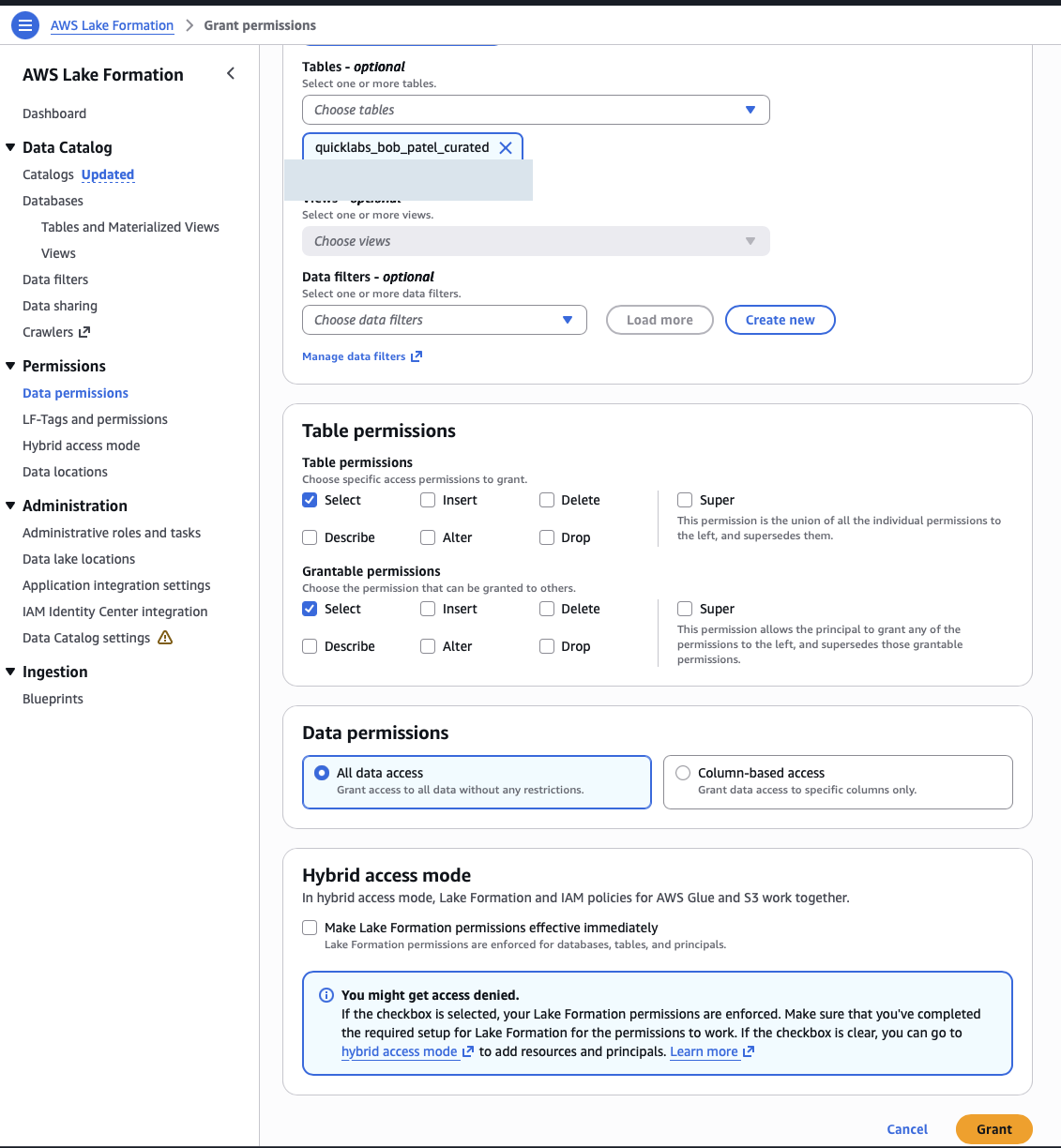
Verify in student7's window:
SELECT * FROM quicklabs_student8_lake.curated_oil LIMIT 5;Returns 5 rows, all columns.
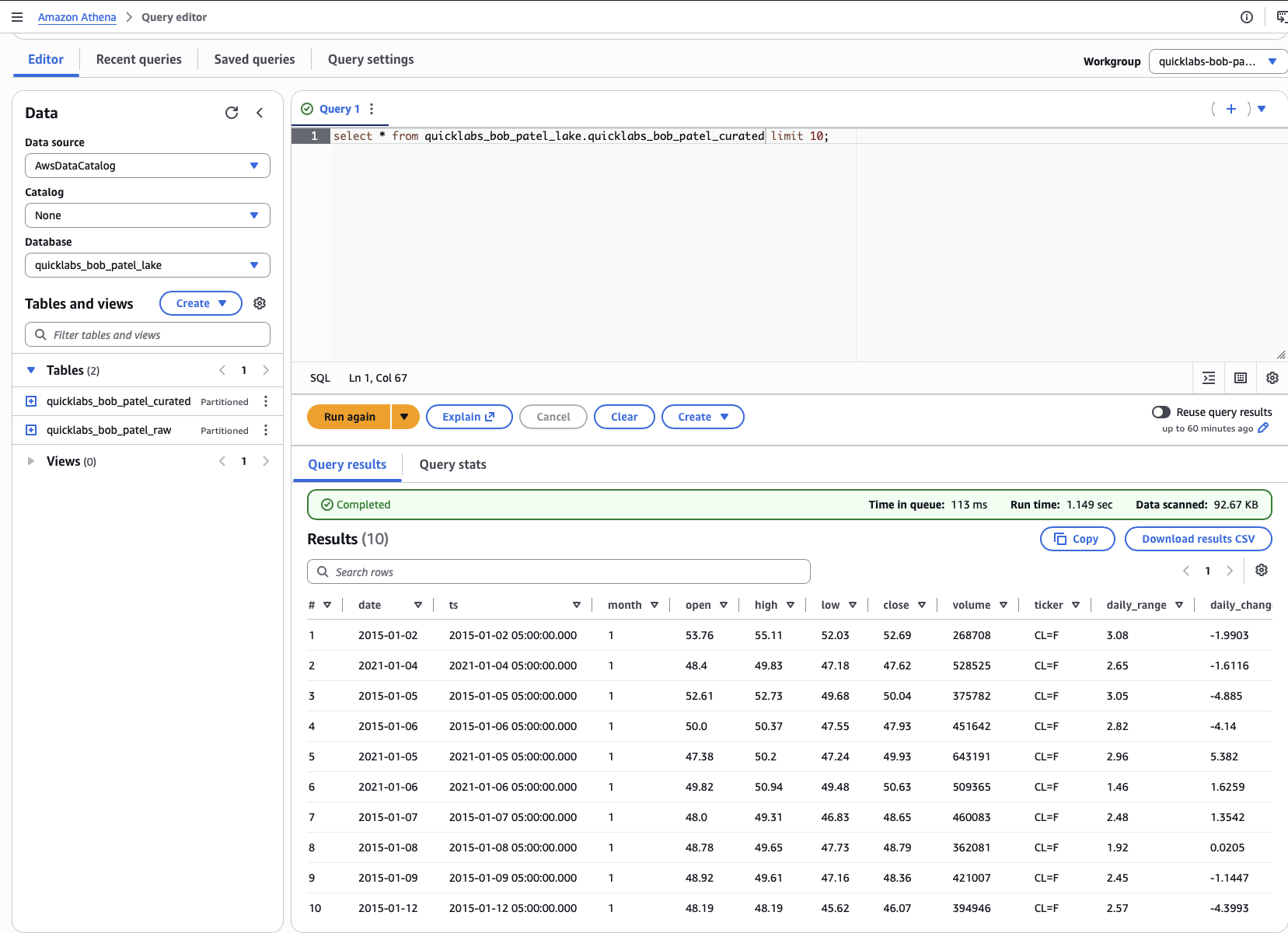
Talking point: "Student7 has no IAM access to student8's S3 bucket. The query still works because LF issued temporary credentials via GetDataAccess. That's the value of Setup 1 — registering the location."
Demo 3 — Column-level grant (5 min)
Back in student8's window. Revoke the table-level SELECT grant first.
Data permissions → find quicklabs-student7 + curated_oil (Select/Describe) row → Revoke.
Now re-grant with columns scoped. The console UI for column grants has moved around in recent versions — try both paths in order.
Path A — newer console (column picker inline)
Data permissions → Grant, same fields as Demo 2 except:
- After picking Database + Table, scroll past the main "Table permissions" checkboxes to a section called "Data permissions" or "Column permissions" (sometimes collapsed under "Advanced" or "More options").
- Toggle: Include columns → select everything except
volume. - Permissions: Select.
Grant.
Path B — fallback (works on any console version)
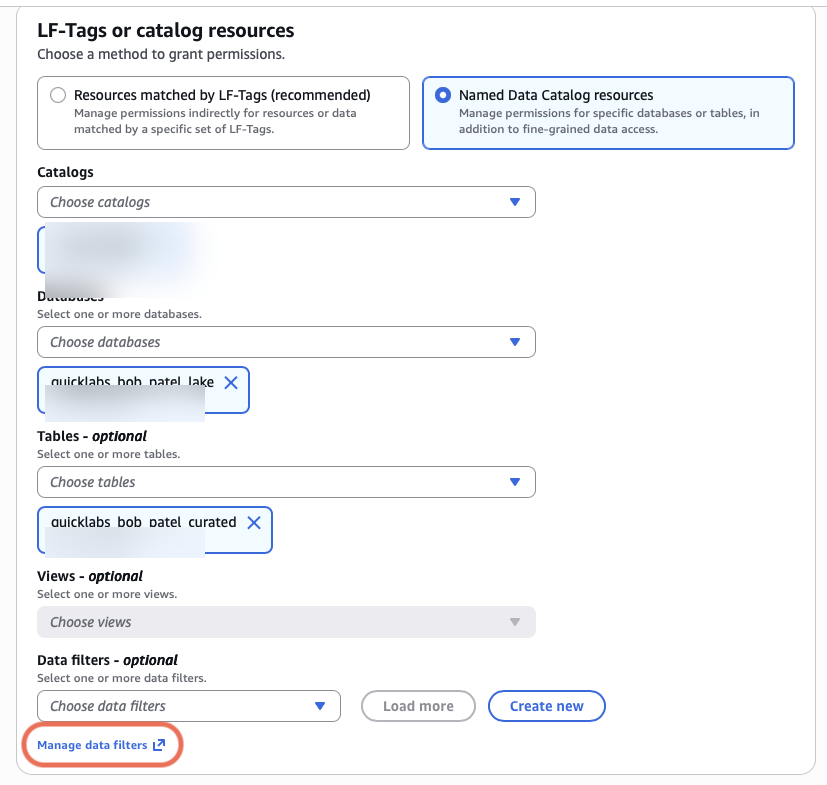
If you don't see a column picker anywhere on the Grant page, use a data cells filter (the same mechanism Demo 4 uses, just with no row filter):
-
LF console → Data filters → Create data filter
Field Value Data filter name student7-no-volumeDatabase quicklabs_student8_lakeTable curated_oilColumn-level access Include columns → all except volumeRow-level access All rows (leave filter expression blank) Create data filter.
-
Data permissions → Grant
Field Value Principal quicklabs-student7Radio Named Data Catalog resources Databases quicklabs_student8_lakeTables curated_oilTable permissions Data filters → student7-no-volumePermissions Select Grant.
Verify in student7's window:
SELECT * FROM quicklabs_student8_lake.curated_oil LIMIT 3;
-- volume column gone from result

SELECT volume FROM quicklabs_student8_lake.curated_oil LIMIT 3;
-- Insufficient Lake Formation permission(s): Required Select on volume
Talking point: "LF strips masked columns at query time. Even if the analyst explicitly names a hidden column, they get a permission error — not NULLs or empty values. This is exactly what GDPR / PII redaction looks like at the data layer."
Demo 4 — Row-level filter via data cells filter (5 min)
Revoke Demo 3's column grant first.
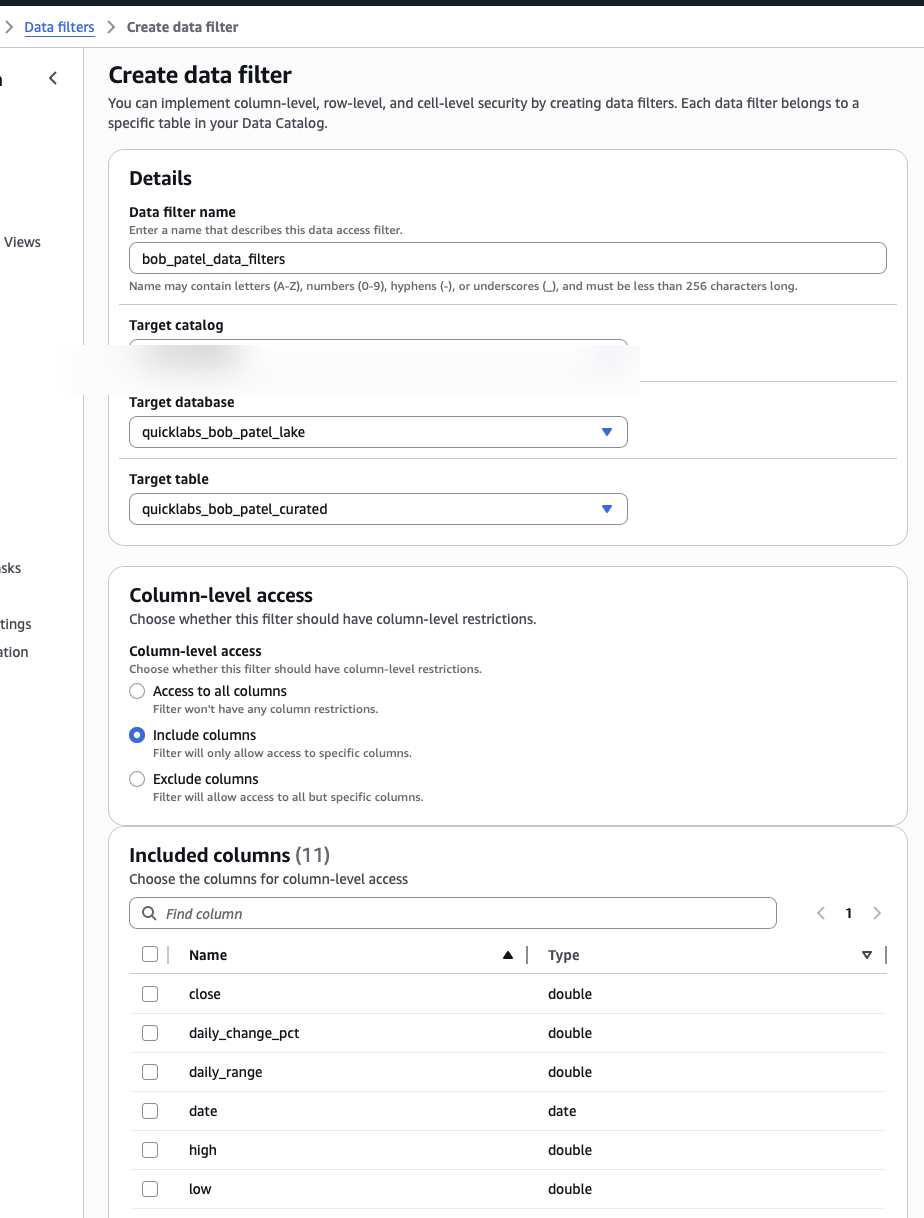
Lake Formation console → Data filters → Create data filter.
| Field | Value |
|---|---|
| Data filter name | student7-recent-oil |
| Target database | quicklabs_student8_lake |
| Target table | curated_oil |
| Column-level access | Include columns → all except volume |
| Row-level access | Filter expression |
| Filter expression | month = 12 |
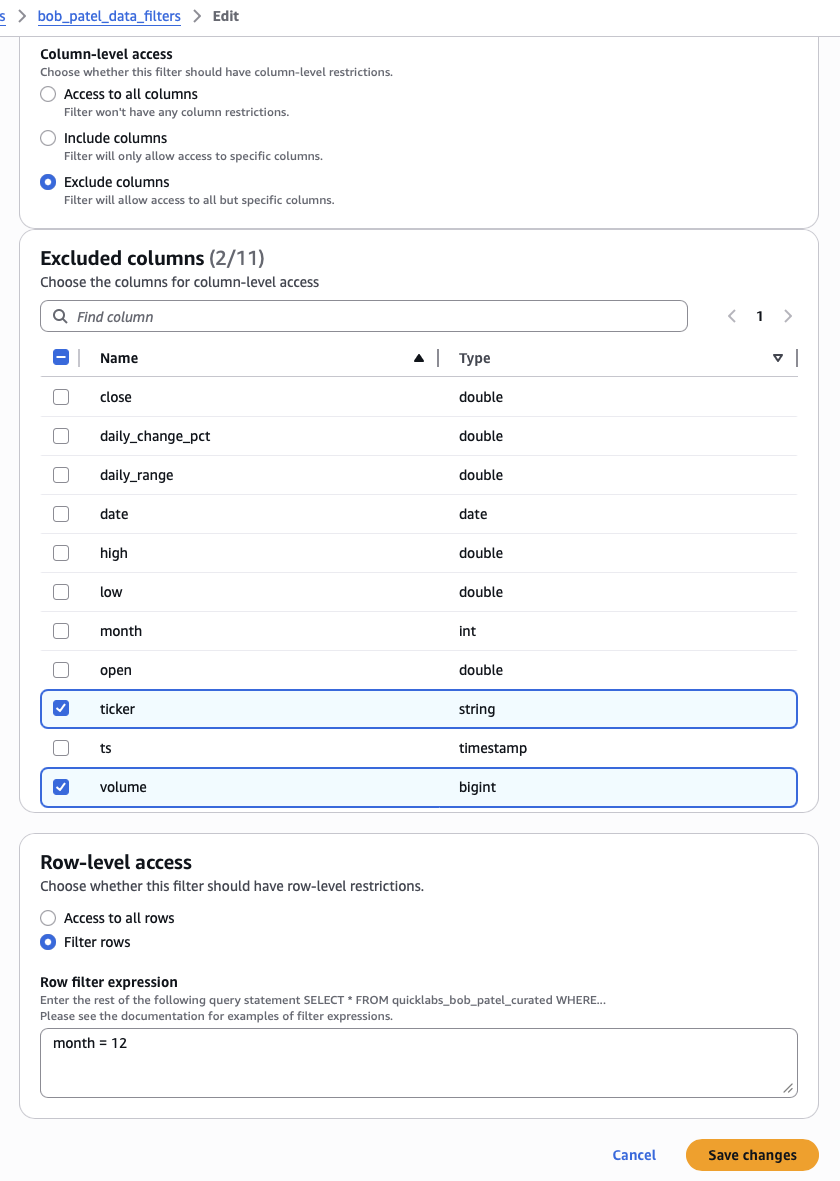
LF row-filter limitations:
- Supports STRING, INT, BIGINT, BOOLEAN column types only.
- DATE and TIMESTAMP are NOT supported — you cannot filter rows by date even though the column exists.
- No literal casts (
date '...',timestamp '...') — that's Athena syntax, not LF syntax.For an oil-price table the practical filter columns are
month(INT),close(DOUBLE), orvolume(BIGINT).month = 12is the cleanest demo: easy narrative ("only December trading days"), instantly visible viaMIN/MAX(month).
Create data filter.
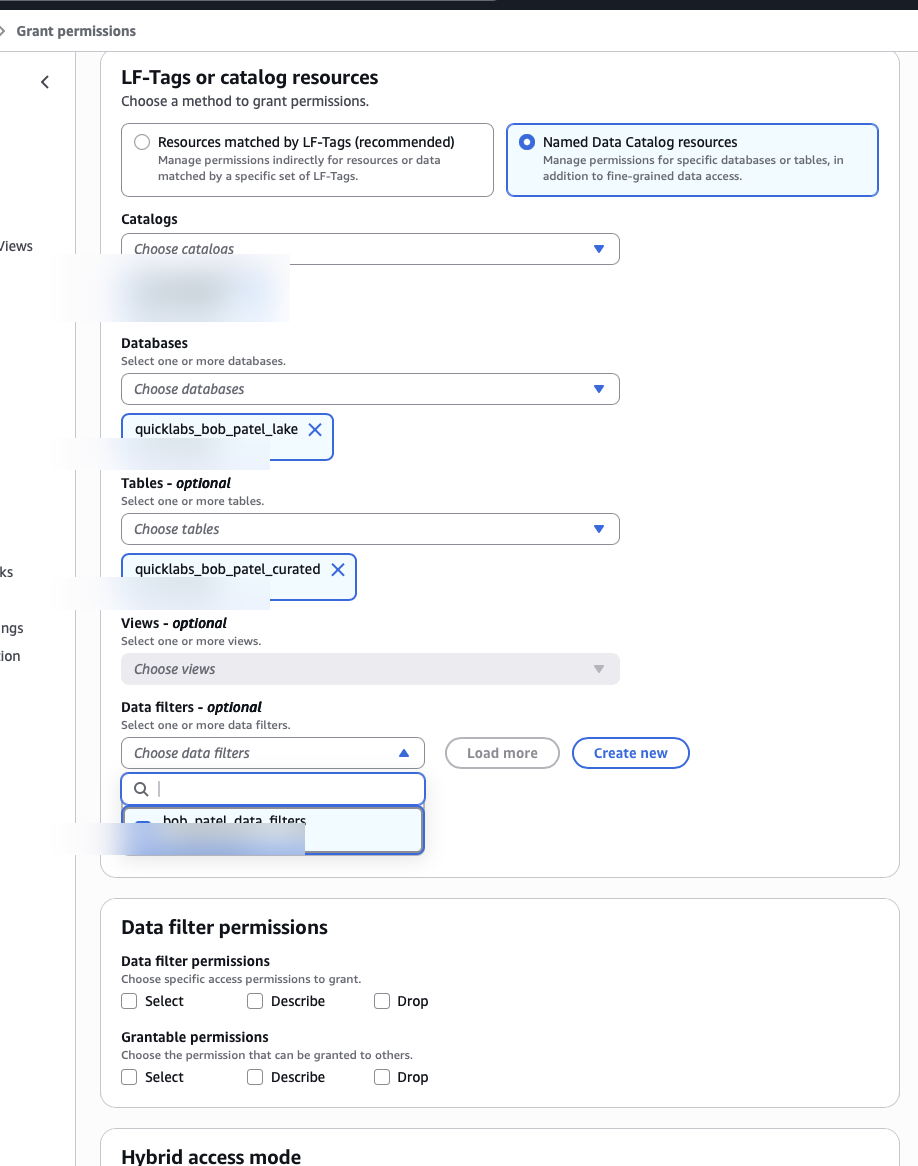
Then grant SELECT on the filter:
Data permissions → Grant.
| Field | Value |
|---|---|
| Principal | quicklabs-student7 |
| (radio) | Named Data Catalog resources |
| Databases | quicklabs_student8_lake |
| Tables | curated_oil |
| Table permissions | Data filter → student7-recent-oil |
| Permissions | Select |
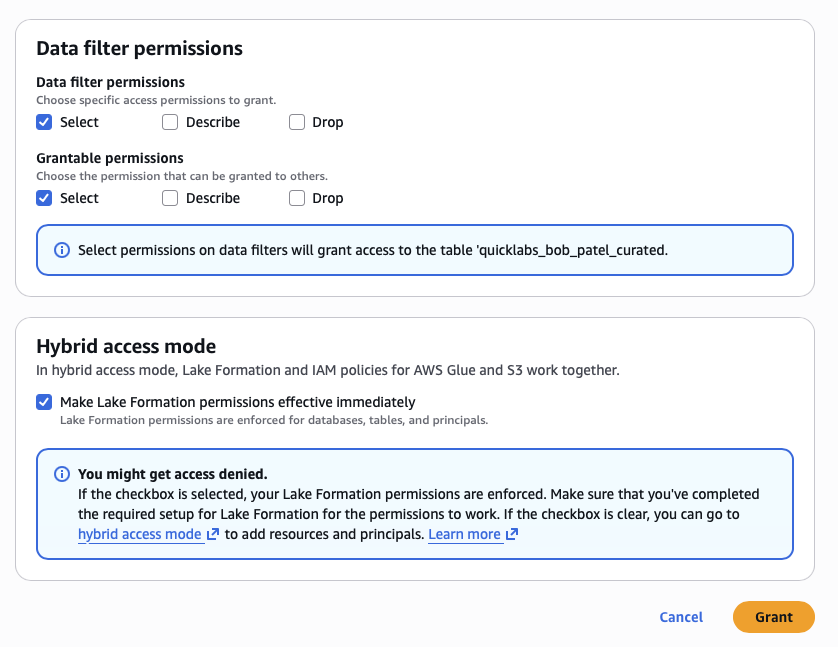
Grant.
Verify in student7's window:
SELECT MIN(month), MAX(month), COUNT(*) FROM quicklabs_student8_lake.curated_oil;
-- Both MIN and MAX = 12; row count is ~1/12th of the full table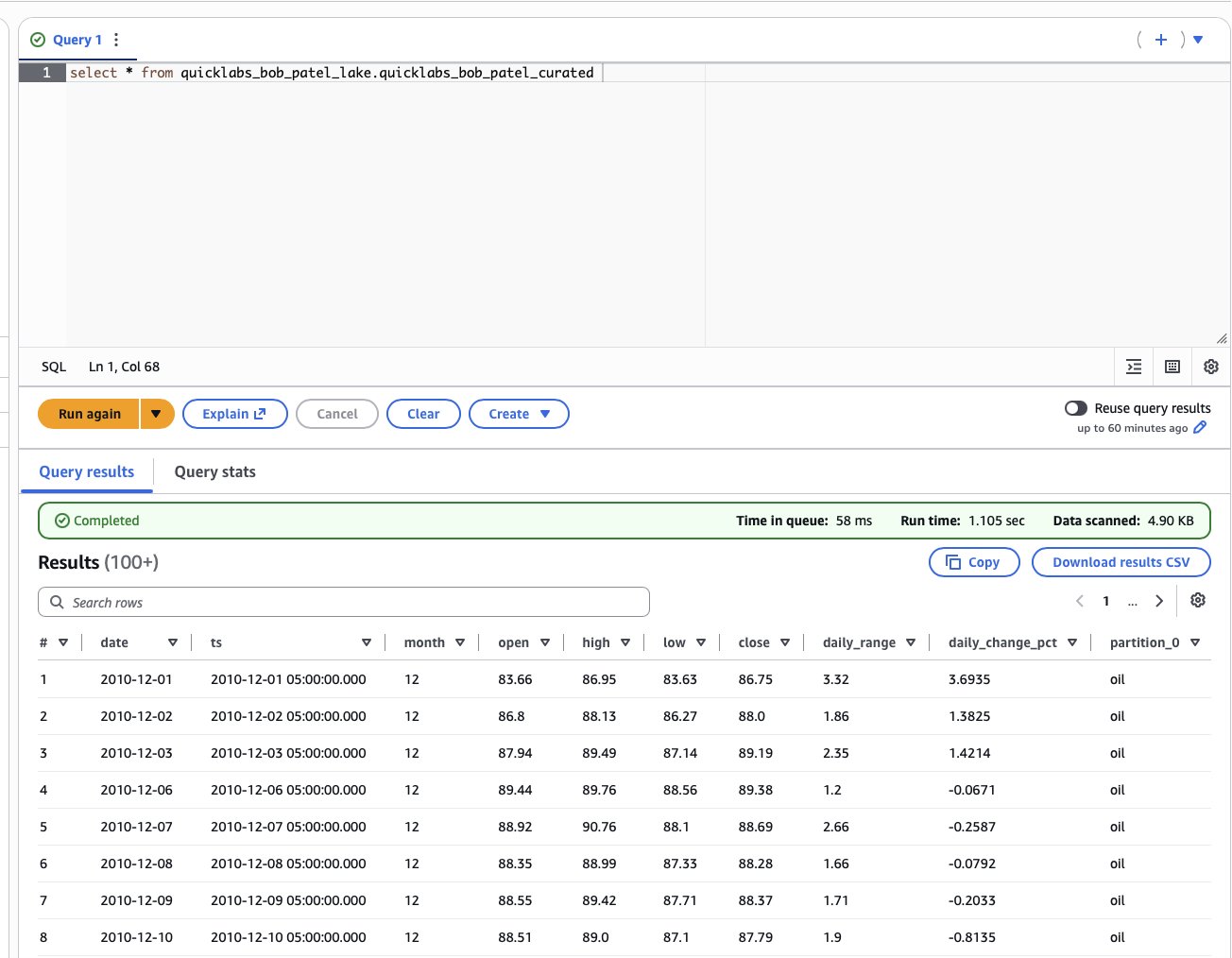
Talking point: "Same physical Parquet files. Same SQL. LF rewrites the query to add WHERE month = 12 and strips columns. The analyst can't see months 1-11 — and can't even tell that data exists."
Demo 5 — LF-Tags (8 min)
Revoke Demo 4's grant first.
5a. Create the tag
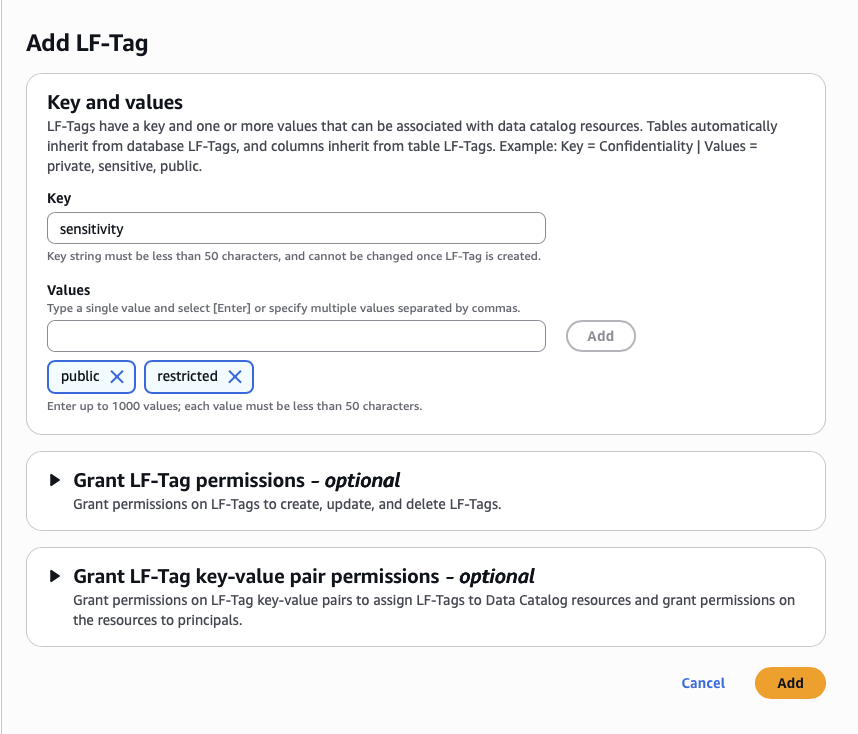
Lake Formation console → LF-Tags → Add LF-Tag.
| Field | Value |
|---|---|
| Key | sensitivity |
| Values | public, restricted |
Save.
5b. Tag the table and the sensitive column
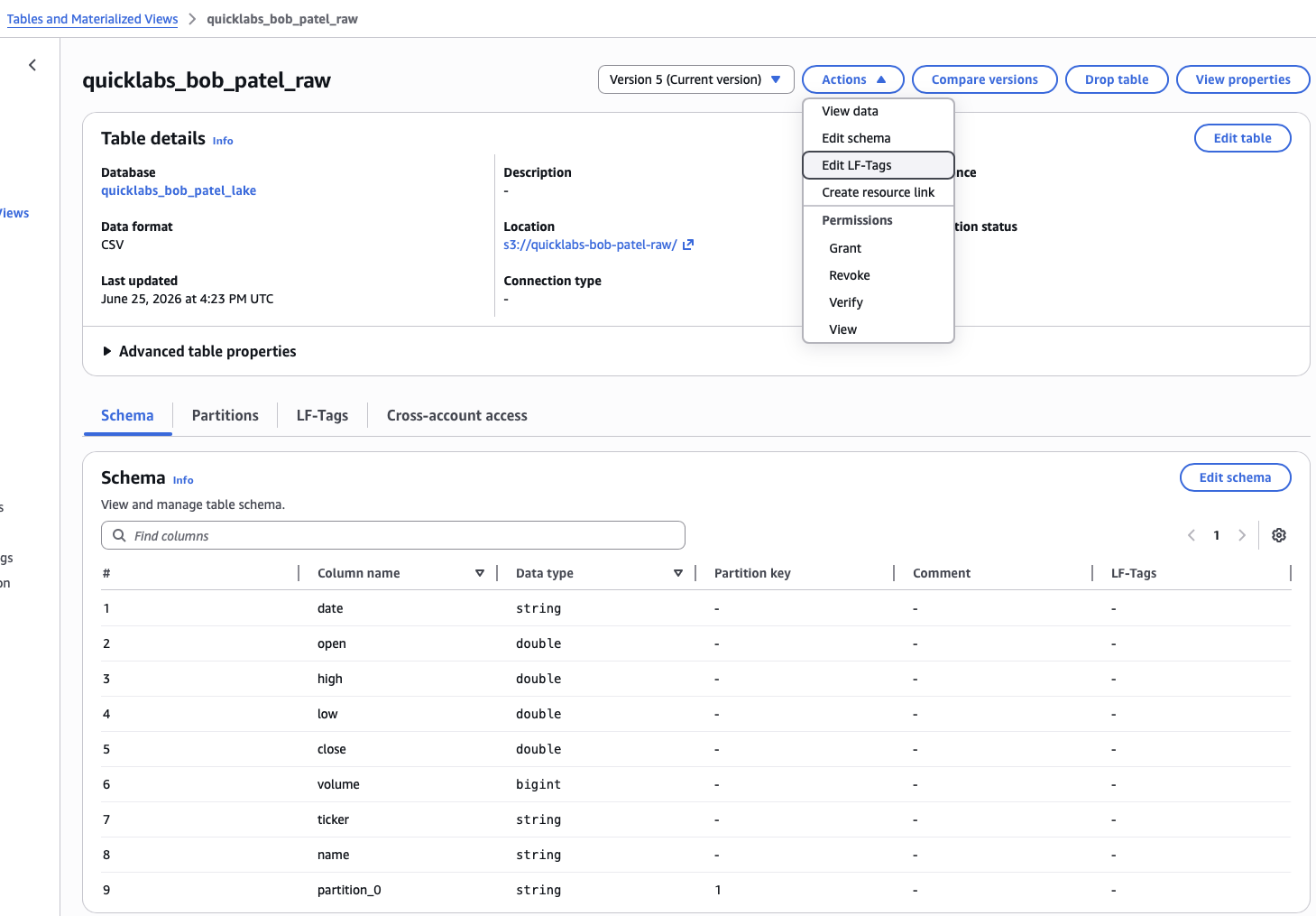
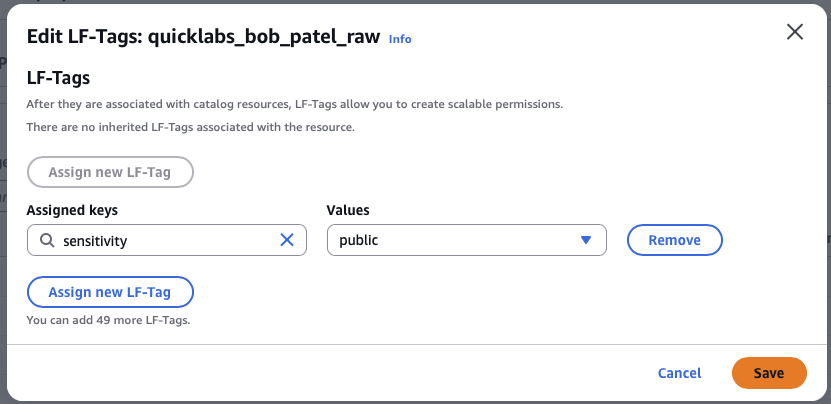
Tables → curated_oil → top right Actions → Edit LF-Tags.
| Tag | Value |
|---|---|
sensitivity | public |
Save.
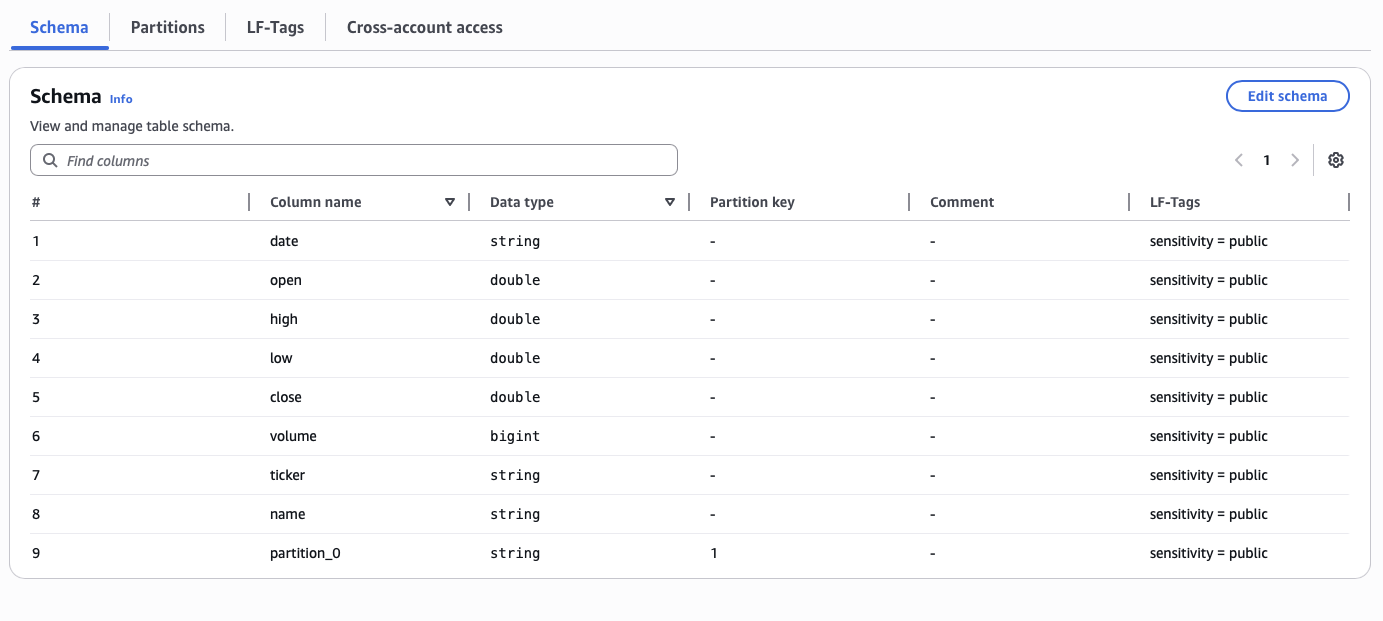
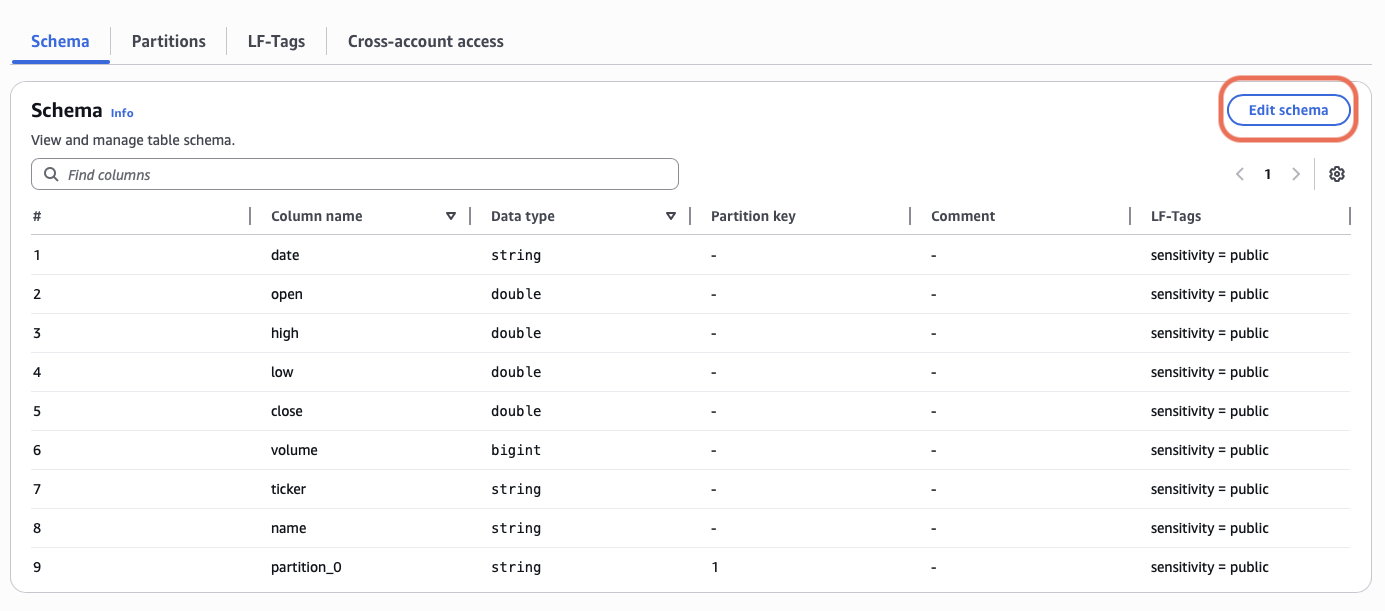
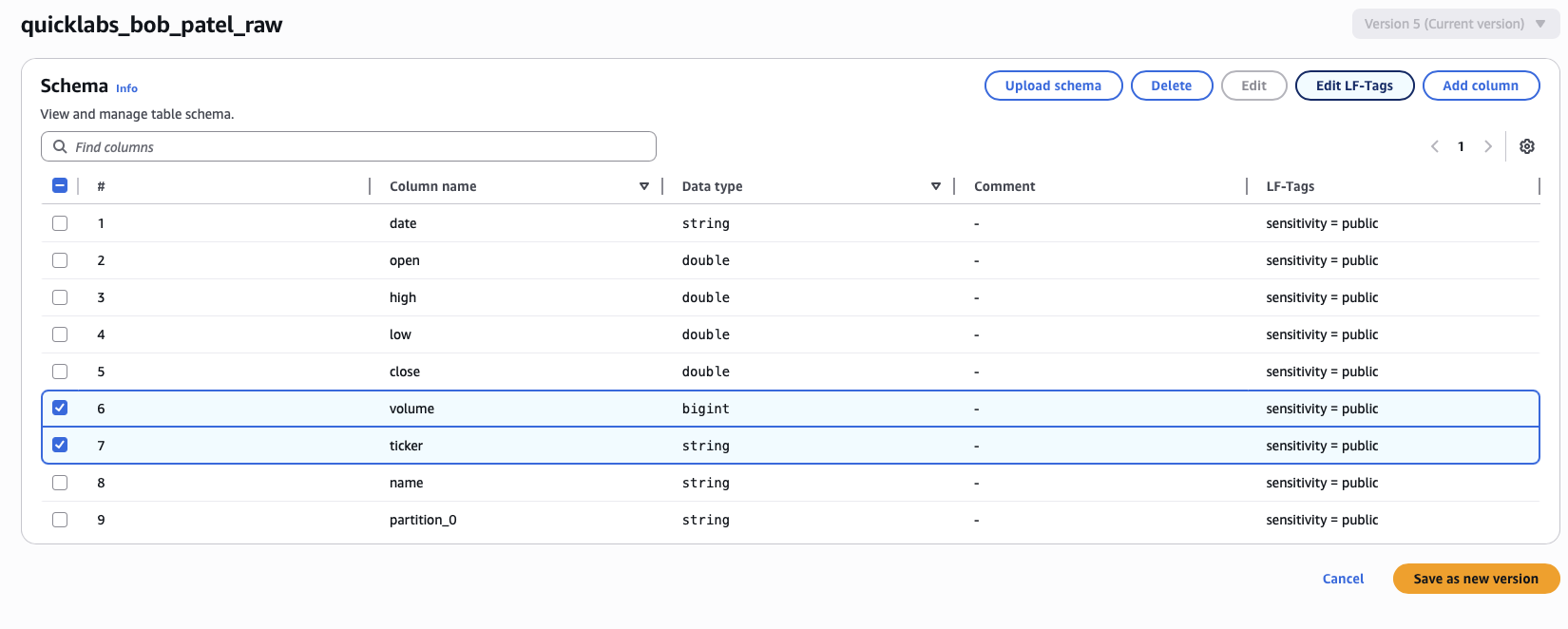
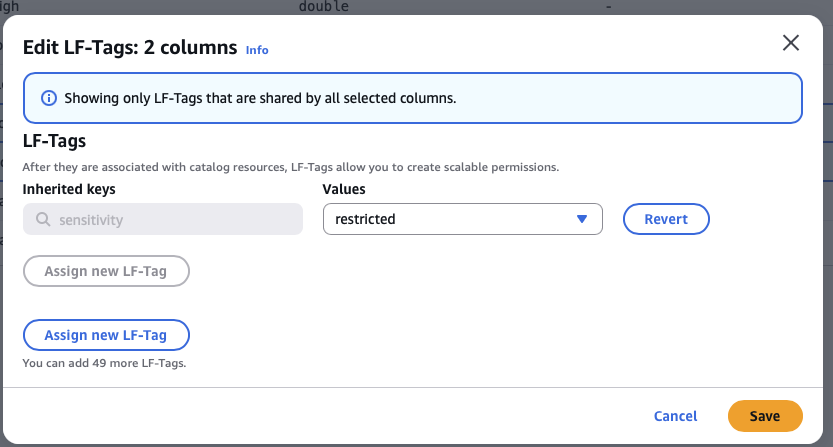
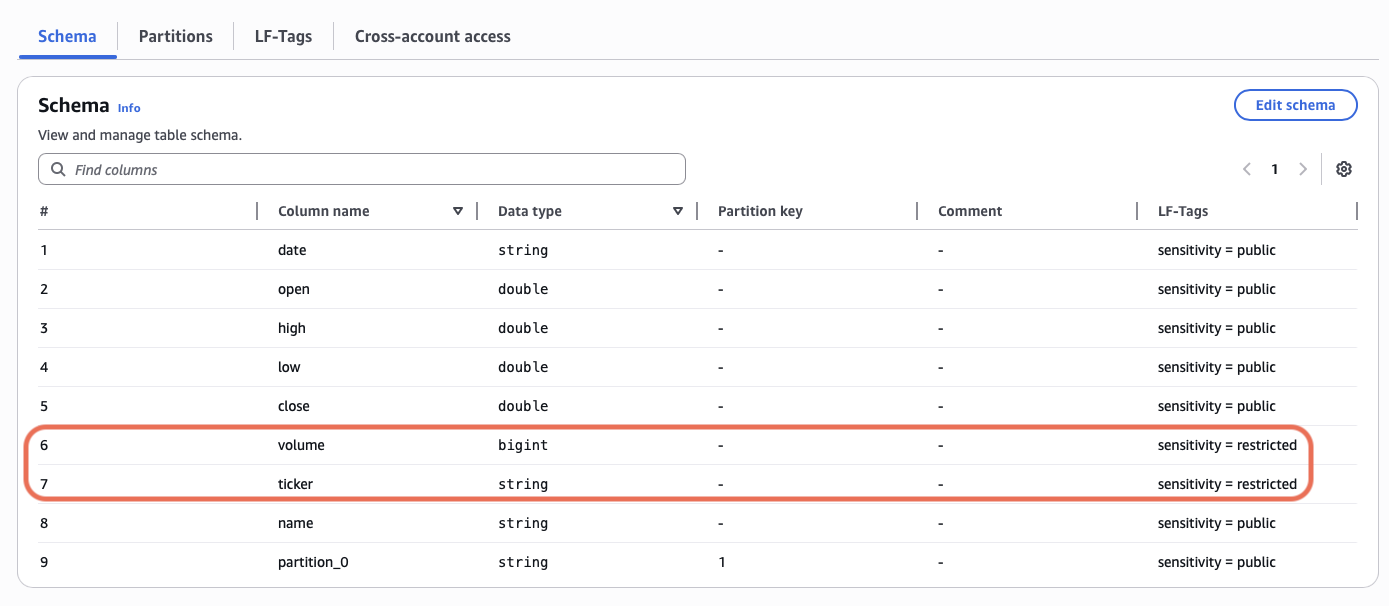
Then Tables → curated_oil → Schema → click the volume column → top right Edit LF-Tags → sensitivity = restricted. Save.
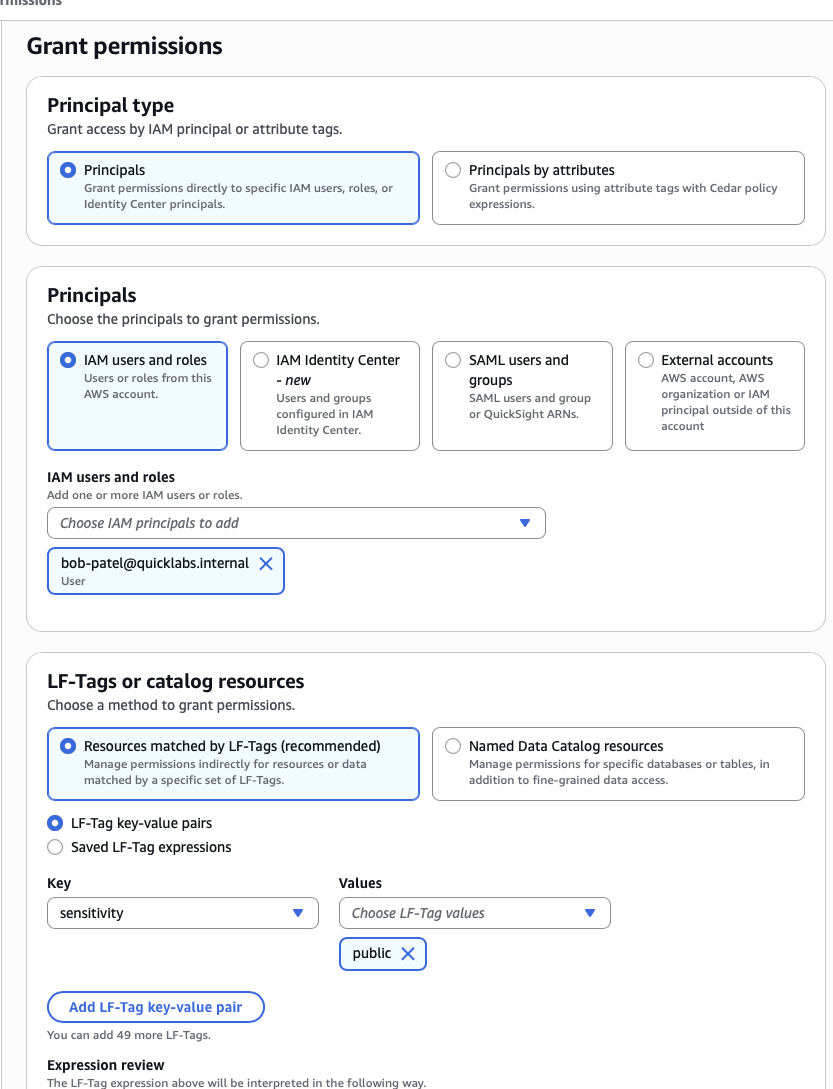
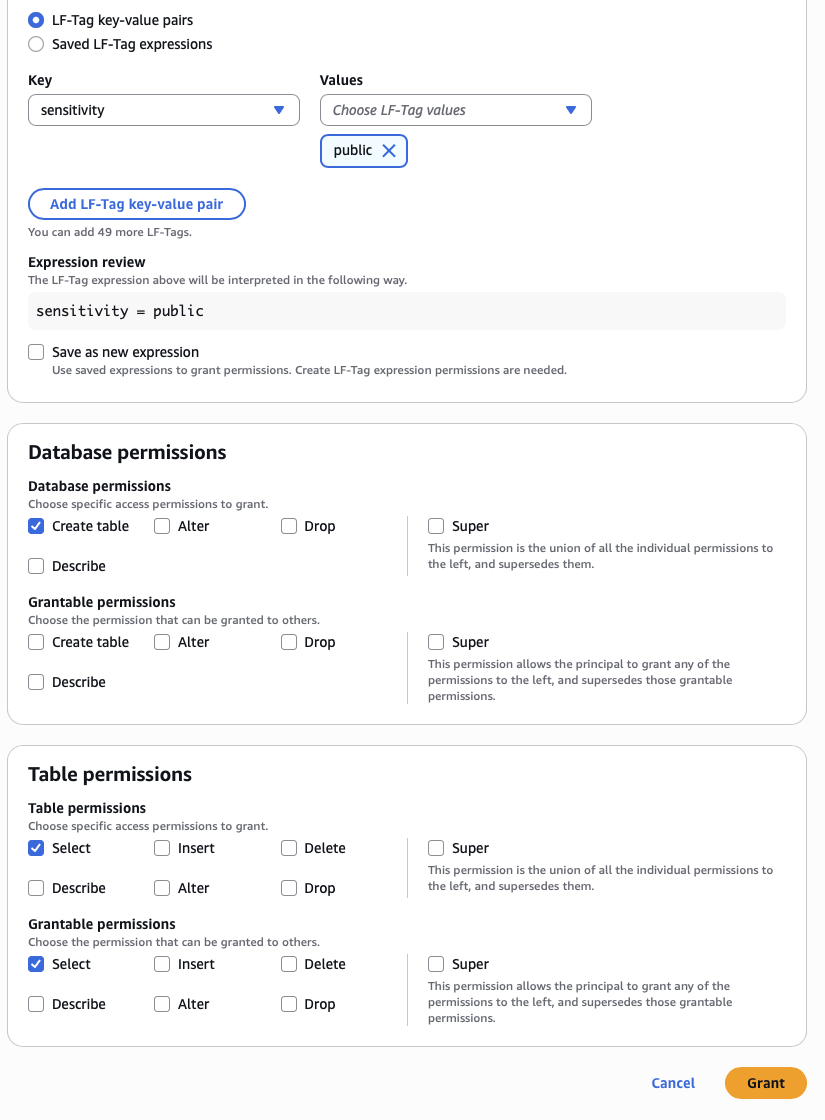
5c. Grant by tag, not by name
Data permissions → Grant.
| Section | Value |
|---|---|
| Principal | quicklabs-student7 |
| (radio) | Resources matched by LF-Tags |
| LF-Tag expression | sensitivity = public |
| Permissions | Select, Describe |
Grant.
Verify in student7's window:
SELECT * FROM quicklabs_student8_lake.curated_oil LIMIT 5;
-- All columns except volume (tagged "restricted")
Talking point: "I never named student7, never named the table, never named a column. I said 'whoever has read on sensitivity = public.' If I tag 200 more tables sensitivity = public tomorrow, student7 gets read on all of them automatically — no new grants. This is how LF scales."
Demo 6 (optional) — CloudTrail audit (3 min)
CloudTrail console → Event history.
Filters:
- Lookup attribute =
User name→quicklabs-student7 - Event source =
lakeformation.amazonaws.com - Time range: last 30 minutes
Look for GetDataAccess events. Click one — requestParameters.resource shows exactly which table and columns LF authorized for that query. That's the audit trail.
Cleanup (when fully done with demo)
In student8's window:
- Data permissions → revoke any rows still granted to student7.
- Data filters → delete
student7-recent-oil. - LF-Tags → delete
sensitivity(optional — keeps account tidy).
Leave the registered S3 location alone — useful for future demos.
Demo time budget
| # | Demonstrates | Time |
|---|---|---|
| 1 | "No grant → no access" baseline | 2 min |
| 2 | Table-level grant | 3 min |
| 3 | Column-level filtering | 5 min |
| 4 | Row + column via data cells filter | 5 min |
| 5 | Tag-based access | 8 min |
| 6 | CloudTrail audit | 3 min |
Full: ~25 min. Shorter version: skip 4 and 6 (~13 min).
Want to bring this to your team? Book a free 30-minute call for consultation or a custom workshop/training.
Book a Free ConsultationI publish new labs every week.
Get them in your inbox — free, no spam.
Want your team hands-on with this in a day? We run this as an instructor-led team workshop.
Explore team workshops